Why shipments get rejected: The single most common reason a first WFS shipment gets held at check-in is that the seller shipped before creating the plan. Walmart states it plainly — you must create the shipping plan in Seller Center before you send items, or your inventory may be delayed or rejected on arrival. Everything else in this guide follows from that one rule.
In plain English: the paperwork comes first, and the paperwork is what tells the fulfillment center your boxes are allowed in the building.
01What Sending Inventory to WFS Actually Involves
When sellers say they want to send inventory to Walmart WFS, they usually picture the shipping part — boxes, a carrier, a truck. In Seller Center the shipping is the smallest piece. The work is the shipping plan: a record that tells Walmart what is coming, how it is packed, who is bringing it, and where it should land.
The plan does three jobs at once. It reserves capacity at a fulfillment center, it generates the receiving labels that let the FC scan your boxes in, and it becomes the tracking record you watch while the shipment moves. Skip it and none of the three exist, which is why unannounced inventory gets turned away rather than quietly received.
One structural detail catches people out on their first attempt: a single plan can split into several shipments going to several facilities. Walmart decides that split based on the item and packing data you enter, which is why that data has to be accurate rather than approximate.
Create the shipping plan in Seller Center before anything leaves your warehouse. Walmart’s own guidance states that otherwise inventory may be delayed or rejected at check-in. No amount of careful packing substitutes for the plan.
02Before You Create a Shipping Plan
Three things need to be true before the flow will go smoothly, and all three are easier to fix now than halfway through.
Your items must be converted to WFS. A seller-fulfilled listing cannot receive WFS inventory. Conversion happens in the catalog, separately from this flow, and an unconverted SKU simply will not appear when you search your catalog in step two.
Your packing data must be real. You will be asked for units, master case configuration and case quantities. Walmart uses these to calculate fulfillment center placement, so a guess here produces a plan routed to the wrong facility with labels to match.
Decide your shipping origin. The flow asks for a US domestic address, or international shipping through Walmart Cross Border — Imports. Picking the wrong one means restarting.
Whatever your volume, send a deliberately small first shipment on any new SKU. You are testing whether your barcodes scan, whether your master case counts match what you declared, and whether your packing passes check-in. Those are cheap lessons on 100 units and expensive ones on 1,000.
03Creating the Plan and Adding Items
In Seller Center, open Shipping Plans and select Create plan. This is the entry point for the entire US WFS inbound process — there is no separate “send inventory” button to find elsewhere.
Next, add your items. You can search your catalog item by item, or upload a spreadsheet when you are sending many SKUs at once. For each one you enter the number of units you are sending and how they are packed. Walmart’s guidance is explicit that this information must be accurate, because it drives fulfillment center placement for the whole plan.
You do not have to finish in one sitting. Select Save as draft at any point and the plan waits for you under the Drafts tab, where Edit draft resumes it and the trash icon removes it. A draft is not a submitted plan, though — nothing is reserved and nothing should ship until you complete and submit it.
What the system is deciding while you type
As you enter quantities and packing, Walmart is working out whether your plan stays as one shipment or splits into several. A plan that splits gives you a tab per shipment later, and each tab has to be completed separately. Sellers who assume one plan equals one shipment often submit with a second tab untouched, which is the most common route to an Action required status.
04Distribution and Inventory Transfer Service
Once your items are in, you choose how inventory gets distributed. There are two routes, and the choice is mostly about how much freight coordination you want to own.
| Option | What you do | Best when |
|---|---|---|
| Distribute yourself | Split the inventory across the shipments Walmart proposes and arrange each one | You have freight experience and want control over routing and cost |
| Inventory Transfer Service | Send to a transfer station and let Walmart distribute onward to fulfillment centers | You would rather ship to one point than coordinate several destinations |
Inventory Transfer Service is worth considering seriously on larger plans. Coordinating four destinations, four appointment windows and four sets of labels is where small teams lose days, and the service exists precisely to collapse that into one handoff.
05Choosing a Carrier and Shipping Type
Now you select the carrier and shipping type, then enter master case or pallet details. If your plan produced multiple shipments, complete this step inside each tab. Walmart offers two carrier routes.
LESS WORK
Discounted rates, pickup arranged for you, and tracking that updates automatically. You can view or reschedule the pickup later from the plan.
MORE CONTROL
You arrange pickup and delivery, download your own carrier labels, and you must add tracking numbers yourself in Seller Center.
If you book through Walmart’s preferred carrier, note the change windows: edits and voids are possible for 24 hours on small parcel and 1 hour on freight. Freight in particular gives you almost no time to reconsider, so confirm pallet counts before you book rather than after.
You will also be asked for a pickup contact and operating hours. This step is optional when you are using your own carrier or sending parcel, and required when Walmart is arranging collection.
06Labels, Bill of Lading and the Packing List
Labels are where otherwise-correct shipments go wrong, because there are several kinds and they are downloaded from two different places in the flow.
- Receiving labels for master cases are available during the shipping step, and again later from the plan for both master cases and pallets.
- Carrier labels are downloaded from the plan, and only when you are using your own carrier.
- Bill of lading is downloaded from the plan for freight shipments.
- Packing list comes from Review item packing inside the plan.
Walmart warns that ship-to locations, estimated prices and shipment IDs reset by the date shown in your plan, and that editing earlier details may reset the shipment and require new receiving labels. A label printed before your final edit can route boxes to a facility that cannot accept them. Treat printing as the last thing you do.
One more thing worth checking rather than assuming: Walmart notes that packing requirements may differ from the general guide, and that Seller Center is the source of truth. If what the screen asks for and what the documentation says disagree, follow the screen and consult the WFS box contents guide.
07Review, Submit and Prepare the Shipment
Confirm each shipment in the plan, then select Create plan to submit. From that point the plan lives under Shipping Plans and you work from View plan, which is where the remaining tasks surface.
- Download receiving labels for master cases and pallets.
- Download the bill of lading if you are shipping freight.
- Download carrier labels, if you are using your own carrier.
- View or reschedule the pickup, if Walmart’s preferred carrier is collecting.
- Open Review item packing to download the packing list.
- Add tracking numbers as soon as the shipment moves, if it is your carrier.
If you need to stop the whole thing, open the plan and select Cancel plan. Two constraints apply. You cannot cancel once any shipment in the plan has reached In transit or a later status, and cancellation applies to the entire plan rather than to one shipment inside it.
08All 14 Inbound Statuses, Decoded
Walmart tracks inbound shipments through fourteen statuses. Most sellers only ever read three of them, which is a shame, because the list tells you exactly who is holding the shipment up at any moment.
| Status | What it means | Whose move |
|---|---|---|
| Processing | Submitted; labels and information are pending | Walmart |
| Action required | Carrier or packing details are missing — select Set up | You |
| Carrier pending | A Walmart preferred carrier is being assigned | Walmart |
| Tracking needed | Add a carrier and tracking number for updates | You |
| Awaiting transit | At your warehouse, ready for transport | You |
| In transit | On its way to a Walmart facility | Carrier |
| Out for delivery | Arriving at a Walmart facility soon | Carrier |
| Arrived | Delivered, but receiving has not started | Walmart |
| Transfer in progress | At a transfer station; inventory is being distributed | Walmart |
| Receiving | Items are being inspected and stored | Walmart |
| Issues | Receiving is delayed due to a shipment problem | You |
| Completed | Receiving is finished | Done |
| Closed | No longer eligible for disputes | Done |
| Canceled | Canceled by you, or by Walmart for inactivity | — |
Action required and Tracking needed both mean the shipment is waiting on you, not on Walmart. Filter the Shipping Plans list by Tracking needed once a week and you will catch every shipment quietly sitting without a tracking number.
The last status deserves a flag of its own. Canceled can happen “by Walmart for inactivity” — a plan you created and abandoned will eventually be cancelled out from under you, which is a problem if you printed its labels and left the boxes on a pallet in the corner.
09Canada Runs a Completely Different Flow
If you operate on both Walmart US and Walmart Canada, do not carry this process across the border. The Canadian WFS inbound flow has different navigation, different limits and a separate appointment booking step. Mixing them up is a genuine source of rejected shipments for cross-border sellers.
In Canada you work under WFS → Shipments rather than Shipping Plans, and create the inbound order with Send Inventory for a few SKUs or Upload Order with the WFS Inbound Order Template for many.
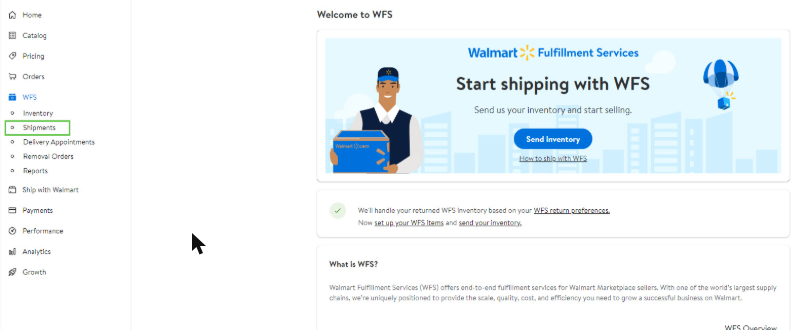
Canada: the inbound flow starts at WFS → Shipments, not Shipping Plans. Source: Walmart Marketplace Learn (Canada).
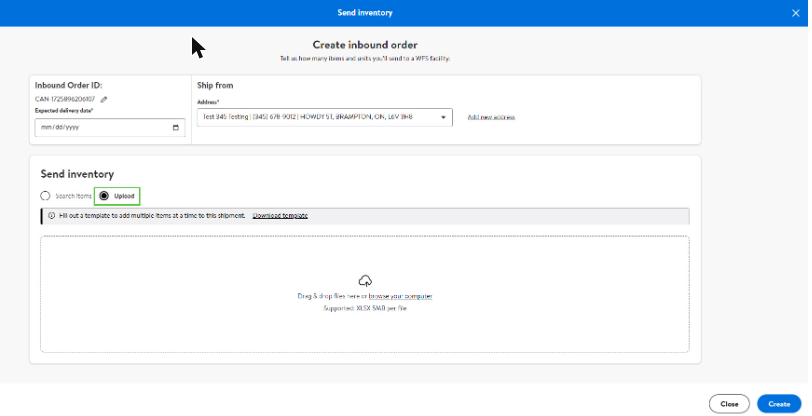
The Canadian Create inbound order modal, with the bulk template upload option selected. Source: Walmart Marketplace Learn (Canada).
Canada also publishes two volume guidelines the US flow does not state: keep the unit count per SKU under 150 for a first shipment, and keep total SKUs under 500 per shipment.
Setting up the shipment is handled from the inbound order itself, through a Set up action rather than a shipping tab.
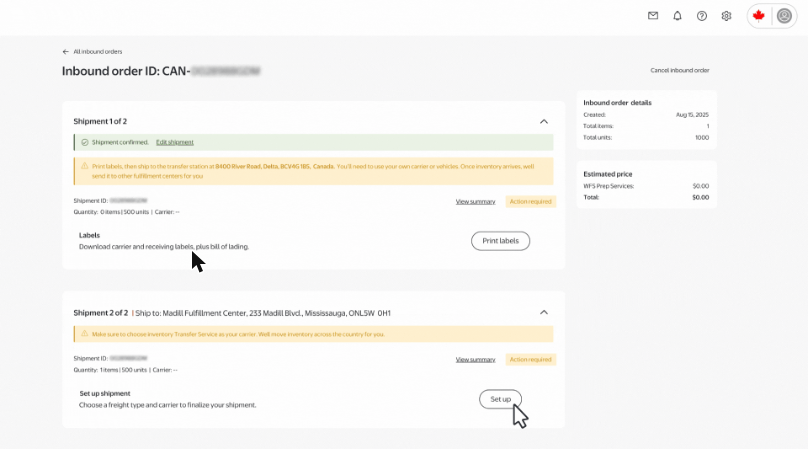
Canada: labels and the Set up shipment action sit inside the inbound order. Source: Walmart Marketplace Learn (Canada).
The biggest divergence is the delivery appointment. Canada requires one to be booked separately under Delivery Appointments → Schedule Delivery, where you choose the fulfillment center, the shipment, the load type and a time slot.
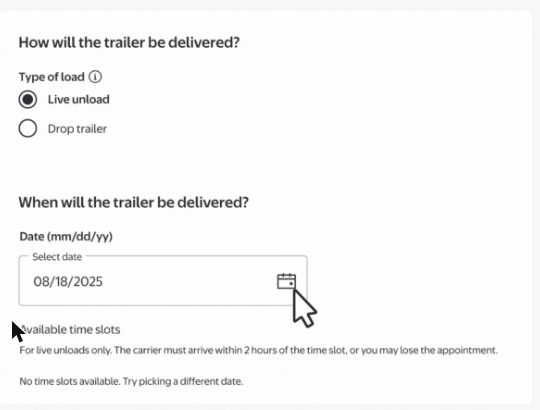
Canada: load type and delivery date, booked separately from the inbound order. Source: Walmart Marketplace Learn (Canada).
A Drop Load requires carrier SCAC SLR — without it you cannot continue past the booking screen. And while you can reschedule an appointment in Seller Center, you cannot cancel one there; cancellation requires emailing the fulfillment center directly.
10Seven Mistakes That Get Shipments Held
Across the Walmart accounts we manage, the same handful of errors account for most delayed check-ins. None of them are complicated. All of them cost days.
The one Walmart warns about directly. Inventory with no inbound record may be delayed or rejected at check-in.
A plan that splits gives you a tab per shipment. Finish all of them or the plan sits at Action required indefinitely.
Editing earlier details may reset the shipment and require new receiving labels. Outdated labels can route your boxes to a facility that cannot accept them.
Units, master case setup and case quantities determine fulfillment center placement. An approximate figure produces a misrouted plan.
Shipments sit at Tracking needed and stop updating. Filter the list by that status weekly to catch them.
Once any shipment reaches In transit, the plan can no longer be cancelled — and you can only cancel a whole plan, never one shipment inside it.
Different navigation, different limits, and a separate appointment step that does not exist in the US flow.
Run these before your next shipment
Three checks worth doing before you create the plan, in the order they affect the outcome.
11What to Watch After the Shipment Lands
Getting inventory received is the beginning of the job, not the end. Three screens in Seller Center tell you whether WFS is actually working for the account.
WFS inventory health
The WFS Inventory page gives you in-stock sales, sell-through rate, aged units and unpublished units in one row. Sell-through is the one to watch: it tells you whether the quantity you sent matches real demand, and it is the figure that decides whether your next shipment should be larger or smaller.
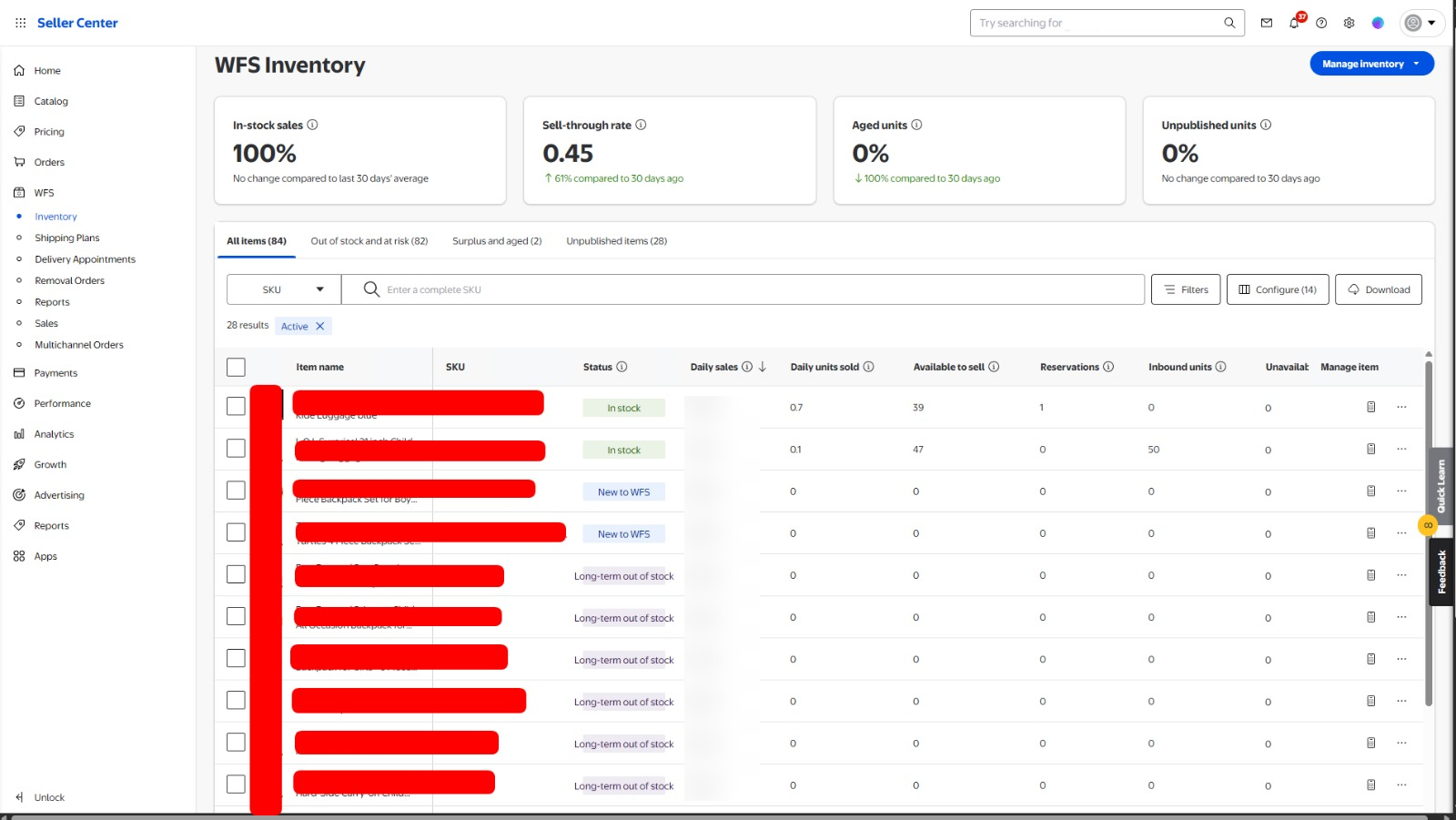
A live WFS Inventory dashboard. Note the tabs: out of stock and at risk, surplus and aged, and unpublished items are each a separate work queue. Item names and figures redacted.
The three tabs beside “All items” matter more than the headline numbers. Out of stock and at risk tells you what to send next. Surplus and aged tells you what is accruing storage costs. Unpublished items tells you what is sitting in a fulfillment center unable to sell at all — the most expensive category of the three, and the easiest to miss.
Performance standards
WFS handles fulfillment, but your seller performance metrics still belong to you. The Performance page scores on-time delivery, cancellations, valid tracking, seller response, negative feedback, returns, items not received and late shipment, each against a published standard.
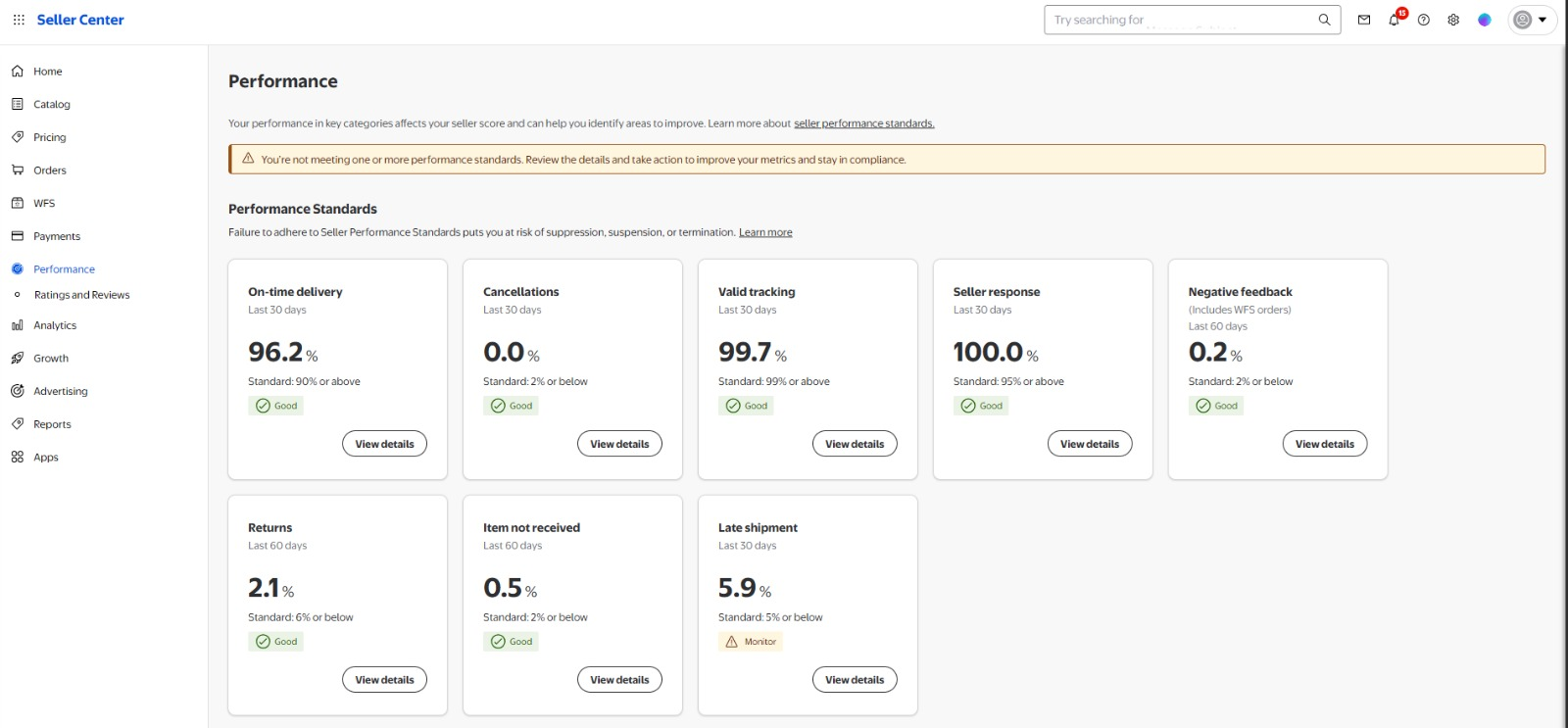
Seven standards passing and one flagged. Late shipment at 5.9% against a 5% standard triggers a Monitor warning even while every other metric is healthy.
That single Monitor flag is the useful lesson. Walmart warns that failing to adhere to Seller Performance Standards puts you at risk of suppression, suspension or termination — and the banner appears when one metric slips, not when the account is broadly failing. A 0.9 percentage point miss on late shipment is enough.
Growth and the Pro Seller ladder
Reliable fulfillment feeds the Pro Seller programme, which gates rewards like faster payouts and listing discounts behind performance criteria measured over a rolling 90 days.
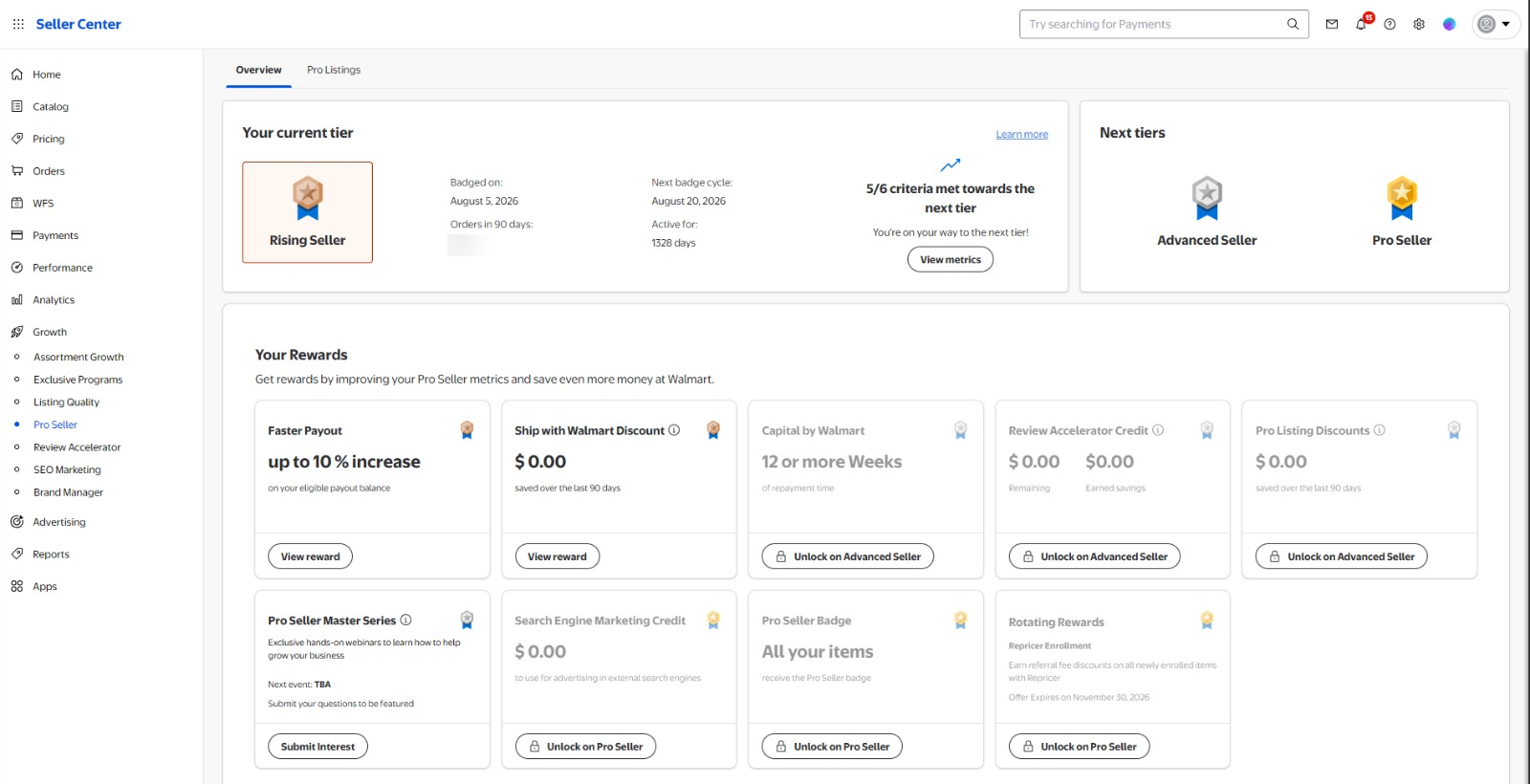
The Pro Seller tier page. Rewards unlock progressively at Advanced Seller and Pro Seller. Order volume redacted.
Sales Insights and Analytics then close the loop, letting you compare a period against the same window last year so you can see whether moving a SKU into WFS actually changed its trajectory.
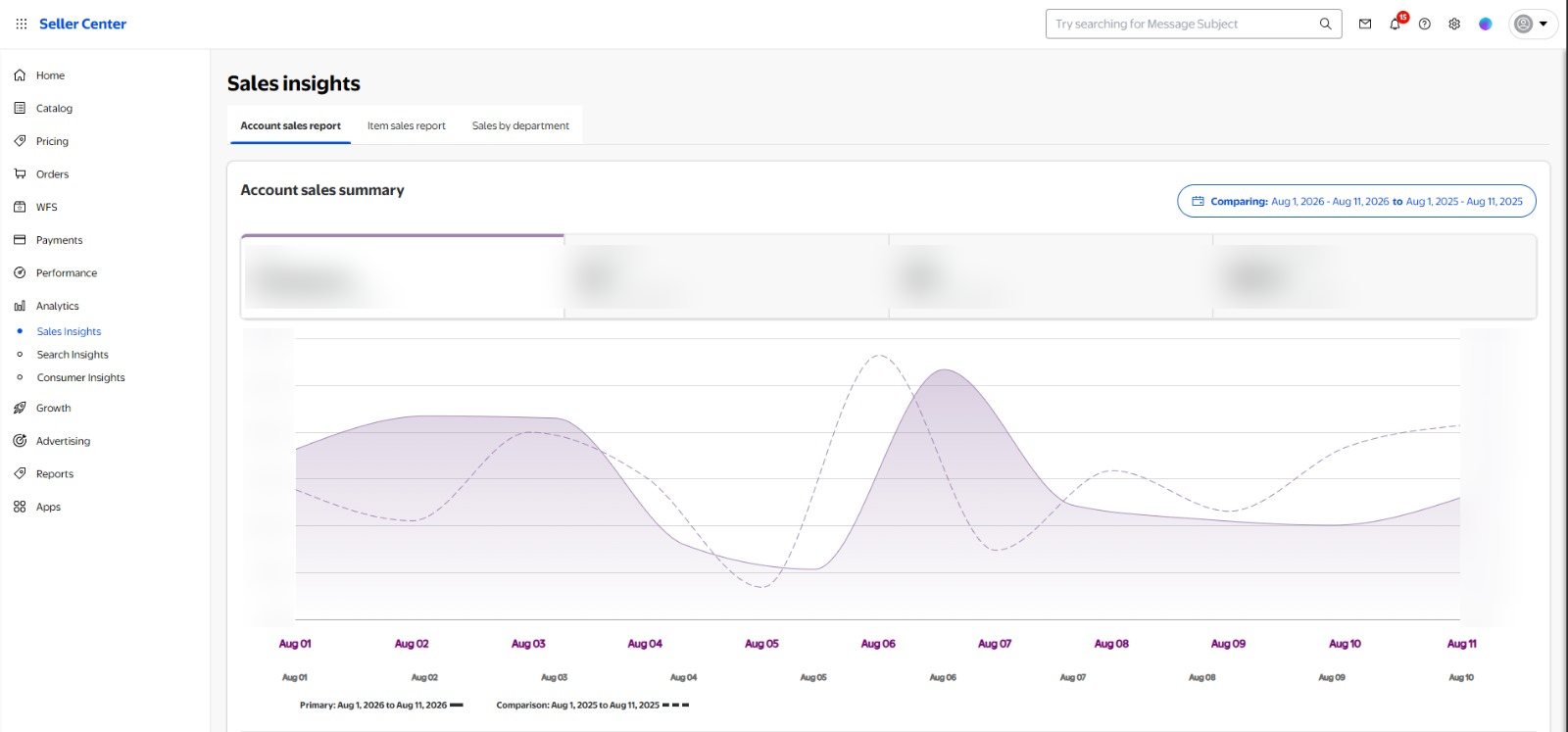
Sales Insights comparing a period against the same window a year earlier. Revenue figures redacted.
12Your Pre-Shipment Checklist
Work down this list before you print a single label.
- Items are converted to WFS and appear when you search your catalog.
- Master case configuration and case quantities are verified, not estimated.
- Shipping origin is set correctly — US domestic, or Cross Border Imports.
- Every shipment tab in the plan is completed, not just the first.
- Carrier chosen, and pickup contact added if Walmart is collecting.
- All edits finished before any label is printed.
- Receiving labels, carrier labels, bill of lading and packing list downloaded from the plan.
- Tracking numbers added the day the shipment moves, if it is your own carrier.
- A reminder set to check the plan’s status within 48 hours.
A plan sitting at Action required is not waiting on Walmart. It is waiting on a field you did not fill in — almost always a carrier or packing detail inside a shipment tab you did not notice existed.
Is WFS actually earning its place in your account?
We audit Walmart accounts the same way we audit Amazon ones — fulfillment mix, sell-through, aged inventory and performance standards together, not in isolation. Get a free GP Account Score and find out where WFS is helping and where it is quietly costing you.